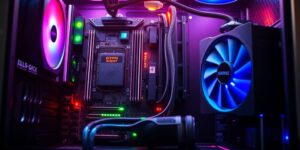
Assembling a PC cheaply can be a challenge, but with the right tips and tricks, it becomes a piece of cake. Whether you’re a gamer or just need a reliable computer for everyday use, there are many ways to keep costs low. In this article, we will show you how to choose the right hardware, where to find affordable components, and how to build your PC stress-free.
Key Insights
- Choose the right hardware for your needs.
- Used parts can be a cost-effective solution.
- Take advantage of discounts and offers to save money.
- Comparison portals help you find the best prices.
- A well-planned setup ensures smooth usage.
Selecting the Right Hardware
Okay, let’s talk about the important parts that belong in your PC. It’s like cooking – you need the right ingredients to make a good dish. The same goes for a PC: the hardware must be right for everything to run smoothly.
Processor: The Heartbeat of Your PC
The processor, also known as the CPU, is the brain of your PC. It performs all calculations and ensures that programs run. Imagine it as the conductor of an orchestra – it sets the tempo and ensures that all instruments play together. The choice of the right processor depends on what you want to do with your PC. For simple tasks like browsing or word processing, a cheaper processor is sufficient. However, if you game or edit videos, you need a more powerful processor. Keep in mind that the Intel Core Ultra 9 285K is a great choice for creatives.
Graphics Card: A Must for Gamers
The graphics card is especially important if you enjoy gaming. It is responsible for rendering images on your screen. A good graphics card ensures that games run smoothly and look great. But a good graphics card is also important for other applications, such as video editing. Pay attention to sufficient memory (VRAM) – more is often better. If you want to save money, you can also buy a used graphics card, but make sure to research its condition and performance beforehand.
Memory: Enough RAM for All Applications
Memory, also known as RAM, is like your PC’s desk. It stores all the data that is currently needed. The more RAM you have, the more programs you can open simultaneously without slowing down your PC.
For most applications, 16 GB of RAM is sufficient. However, if you use many programs at once or run memory-intensive applications like video editing software, you should consider 32 GB or more.
Here are some guidelines:
- 8 GB: For simple tasks like browsing and word processing
- 16 GB: Sufficient for most games and applications
- 32 GB: For memory-intensive applications and multitasking
It’s also important to pay attention to the speed of the RAM. Faster RAM can improve your PC’s performance, especially in games. But make sure that your motherboard supports the faster RAM.
Finding Budget-Friendly Components
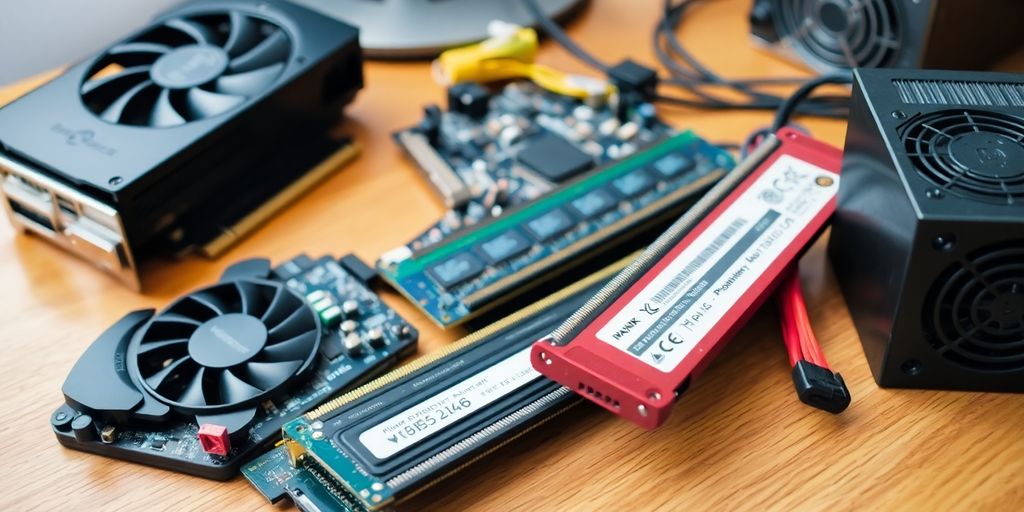
Used Parts: Bargain Hunter
Okay, let’s be honest: new is great, but expensive. If you really want to save, take a look at used parts. Sure, there’s a certain risk involved, but the potential savings are enormous. Always make sure to thoroughly check the parts before buying or have them checked by an expert.
- Check classifieds and auction platforms.
- Ask friends and acquaintances if anyone has something to give away.
- Read reviews and research the seller.
Remember: used parts are often cheaper, but there’s no guarantee. Be cautious and do your research before you buy.
Discounts and Offers: Where to Save?
Be smart and take advantage of discounts and offers! Price comparison sites are your best friend, but newsletters from retailers can also be worth their weight in gold. Many shops regularly have sales or offer coupons. And don’t forget: students, pupils, and apprentices often get special discounts.
- Subscribe to newsletters from hardware retailers.
- Use price comparison sites to find the best deals.
- Watch for seasonal sales (Black Friday, summer sales, etc.).
Comparison Portals: Keeping an Eye on Prices
Comparison portals are great for keeping track. Just enter the desired component, and you’ll see where it’s the cheapest. But be careful: the cheapest provider isn’t always the best. Also, pay attention to shipping costs, reviews, and availability. With an ASRock B660M Pro RS Motherboard as a base, you can already get started.
| Component | Cheapest Price | Retailer |
|---|---|---|
| CPU | €150 | Shop A |
| Graphics Card | €200 | Shop B |
| Memory | €50 | Shop C |
- Geizhals.de
- Idealo.de
- Preisvergleich.check24.de
Stress-Free Assembly
Okay, the assembly! Sounds wild at first, but don’t panic. With a little preparation and patience, you can do it easily. Remember, it’s like a big Lego set for adults – just with more cables and fewer colorful bricks.
Tools You Need
You don’t need much to get started. A Phillips screwdriver (preferably with a magnetic tip, trust me, it helps!), a few cable ties to keep things tidy later, and maybe a small scissors or wire cutter for the cable ties. And very importantly: a steady hand and enough light! A pair of tweezers can also be useful if you’re clumsy and drop small screws. And don’t forget a professional assembly can save you a lot of time.
Step-by-Step Guide
- Preparation is everything: Find a clean, well-lit workspace. It’s best not to do this on a carpet due to static electricity. Ground yourself briefly by touching a radiator. This prevents you from accidentally frying your hardware.
- Install the motherboard: Screw the motherboard into the case. Make sure not to forget the standoffs!
- Insert the CPU: Be careful! The CPU has a marking that must align with the socket on the motherboard. Don’t force it!
- Insert RAM: Simply press the RAM sticks into the designated slots until they click into place.
- Install the cooler: Don’t forget thermal paste! The cooler ensures that your processor doesn’t overheat.
- Install the graphics card: The graphics card goes into the top PCIe slot. Again, make sure it clicks into place!
- Connect hard drives/SSDs: Don’t forget the power and data cables.
- Connect the power supply: Provide power to all components.
- Cable management: Now comes the fun part: hiding cables! Cable ties are your friends.
- Test run: Before you screw everything shut, test if the PC boots up. If not, don’t panic! Check all connections.
Remember: The manuals for your components are your best friends. Read them carefully before you start. And if you’re unsure, it’s better to ask a friend or watch a few tutorials on YouTube.
Avoiding Mistakes: Tips for Beginners
- Static Electricity: Avoid carpets and ground yourself regularly.
- Wrong Screws: Risk of confusion! Sort the screws at the beginning.
- Forgotten Cables: Check all connections before starting the PC for the first time.
- Force: If something doesn’t fit, don’t force it! Better check again.
- Thermal Paste: Not too much, not too little. A thin layer is enough.
And if you really don’t want to deal with all the stress, let someone build your dream PC. That’s okay too!
Optimizing Your Setup
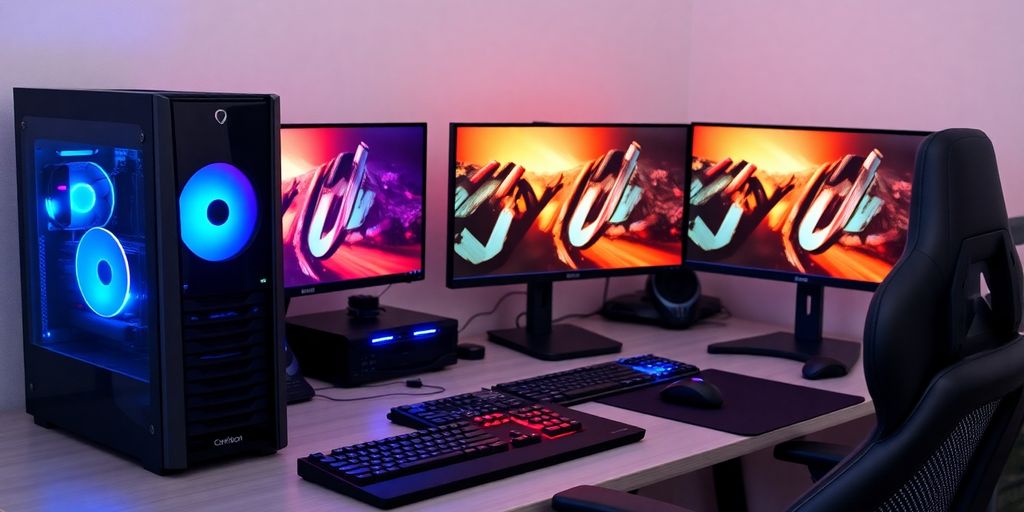
Okay, your PC is up and running and making noise? Then it’s time to really get it fit. This is not just about performance, but also about making your setup cool and comfortable.
Cooling: Keeping Everything Cool
Cooling is super important to prevent your components from overheating and breaking. Especially if you game a lot or edit videos, it can get hot quickly. There are different options:
- Air Cooling: Often cheaper and easier to install. A large heatsink with a fan dissipates the heat.
- Water Cooling: Looks cooler and is often more effective, but also more expensive and complicated to install. Here, heat is transported away with water.
- Fan Control: This allows you to adjust the speed of your fans and reduce noise.
Remember: Good cooling extends the lifespan of your hardware and ensures more stable performance. Make sure the cooling is compatible with your processor and graphics card.
Case: Design and Functionality
The case is more than just a shell. It protects your hardware, ensures good ventilation, and ideally looks good too. Here are a few points to consider:
- Size: Does the case fit your components? Large graphics cards need a lot of space.
- Ventilation: Does the case have enough fan slots and air vents? Assembling a gaming PC is easier with a well-ventilated case.
- Cable Management: Is there enough space to neatly route the cables? This improves appearance and airflow.
- Design: Do you like the case? There are countless designs, from simple to flashy.
Peripherals: The Right Choice
The best components are useless if the peripherals don’t match. Here are a few tips:
- Monitor: Look for a high resolution (at least 1920×1080, better WQHD or 4K), a fast response time, and a high refresh rate (at least 60 Hz, better 144 Hz or more).
- Keyboard and Mouse: This depends on your preferences. Mechanical keyboards are often more precise and durable, but also louder. Gaming mice often have extra buttons and a higher polling rate.
- Headset: A good headset provides clear sound and good voice quality. Look for a comfortable fit and good noise isolation.
Don’t forget: The peripherals are your interface to the PC. This is where you shouldn’t skimp.
Software and Operating Systems
Windows or Linux: Which is Better?
Okay, now it gets philosophical! Windows or Linux – it’s almost like the question of the meaning of life, just for your PC. You probably already know Windows. It’s super widespread, many games run smoothly, and most programs are optimized for it. But it does cost operating systems or services. Linux, on the other hand, is often free and open source, which means you can customize it to your liking. However, installation can be a bit tricky, and not all software runs smoothly. For gaming, Windows is often the easier choice, but for tinkerers and those who like to have control, Linux is really cool.
Drivers: Always Stay Updated
Drivers are like the interpreters between your hardware and the operating system. Without the right drivers, your graphics card won’t work properly, your sound will be silent, and your printer will print gibberish. So, always keep your drivers up to date! Windows usually does this automatically, but it doesn’t hurt to check for updates yourself from time to time, especially for your graphics card. Manufacturers like NVIDIA or AMD offer their own tools to help you with this. Trust me, updated drivers can work wonders, especially with new games.
Useful Programs for Your PC
Your PC can do more than just Word and a few games! There are countless programs that can make your life easier. Here are a few ideas:
- VLC Media Player: Plays almost any video format without complaint.
- 7-Zip: Compresses files and unpacks them again – super handy for saving space.
- CCleaner: Cleans up your PC and removes unnecessary clutter. But be careful, don’t overdo it!
- Malwarebytes: Protects you from viruses and other malware. A must for every PC.
Remember, less is sometimes more. Don’t install every piece of junk you find on the internet. This will only slow down your PC and make it insecure. Focus on the programs you really need and keep them updated.
Building for the Future
Upgrade Options: Stay Flexible
Sure, you might not have the budget for high-end components right now, but remember: technology is advancing rapidly. When buying, make sure that your motherboard and case have enough room for future expansions. Consider whether you might want to install a second graphics card later, add more RAM, or switch to water cooling. A modular power supply can also be worth its weight in gold, as you only need to connect the cables you really need. This way, your PC can remain gaming PC 2025 relevant in the future.
Compatibility: Parts for the Future
It’s super important that all your components work well together. Check the compatibility of the CPU, motherboard, and RAM before you order anything. Nothing is more frustrating than wanting to assemble everything and then finding out that the RAM doesn’t fit the motherboard. Also, pay attention to the connections used (e.g., USB-C) and whether your case has enough of them. Find out if the motherboard needs BIOS updates to support newer CPUs.
Technological Trends: What’s Coming Next?
Keep an eye on the latest developments. What are the upcoming trends in CPUs, graphics cards, and storage? Are new standards being introduced that will soon make your current components look outdated? You don’t have to get the latest and greatest right away, but it doesn’t hurt to know what’s in the pipeline. This way, you can better assess how long your PC is likely to remain current.
Remember that you don’t need everything at once. It’s often wiser to invest in solid base components now and upgrade later when you need more performance or new technologies become available.
Here are a few points to keep an eye on:
- PCIe 5.0: Offers higher bandwidth for graphics cards and SSDs.
- DDR5 RAM: The successor to DDR4, with higher speed and efficiency.
- New CPU Generations: Intel and AMD regularly release new processors that offer more performance and efficiency.
Clearing Up Common Questions
What is the difference between gaming and office PCs?
Okay, let’s clarify this. A gaming PC is like a sports car – it’s tuned for performance to run the latest games smoothly at high settings. This means an expensive graphics card, a fast processor, and plenty of RAM. An office PC, on the other hand, is more like a reliable family car. It needs to run stably, handle typical office applications, and not cost too much. Here, an integrated graphics unit and less RAM are often sufficient. The main difference lies in the performance and the components used for that.
How much money should I invest?
That’s the million-dollar question, right? It really depends on what you want to do with your PC. For simple office work and a bit of browsing, you might get by with €400-600. But if you want to game, you should plan on at least €800 and up. And of course, there are no limits on the high end. Remember: you can also start with budget-friendly components and upgrade later.
Can I build a PC myself?
Absolutely! It’s not as hard as you might think. There are tons of guides and videos online that explain every step to you. Sure, it’s a bit intimidating at first, but if you prepare well and take your time, you can do it. And the feeling when the PC boots up for the first time is priceless. Plus, you often save money because you can choose and buy the components yourself. Here are a few reasons why it might be worth it:
- You save money.
- You learn a lot about computers.
- You can customize the PC exactly to your needs.
Build your PC yourself; it’s easier than you think. With a little patience and the right guides, you can easily manage it. And if you ever get stuck, there are plenty of forums and communities that can help you.
Conclusion: Your Perfect PC at a Low Price
So, that’s it! Now you know how to assemble your PC cheaply. It’s really not as complicated as it looks. With a little planning and the right tips, you can save a lot of money and build exactly the system you want. Remember to check the parts carefully and ensure everything fits together. And if you ever get stuck, there’s always help online. So, get to the parts and have fun building!
Clearing Up Common Questions
What is the difference between gaming PCs and office PCs?
Gaming PCs are more powerful and have better graphics cards to run games smoothly. Office PCs are simpler and sufficient for text and internet use.
How much money should I spend on my PC?
It depends on what you want to do with the PC. For office applications, €300 to €500 is often enough, while gamers should plan for at least €800 to €1000.
Can I build a PC myself?
Yes, that is possible! There are many guides and videos that help you step by step. With a bit of patience and care, you can manage it.
What parts are most important for a gaming PC?
The most important parts are the processor, graphics card, and memory. These determine how well your PC can run games.
How do I find cheap PC components?
Look for used parts, search for discounts, or use comparison portals to find the best prices.
Do I need special tools for assembly?
A simple screwdriver and possibly cable ties are usually sufficient. Make sure to have a clean workspace.