
Building a gaming PC yourself can be an exciting and rewarding task. With the right knowledge and the right components, you can create a computer that is perfectly tailored to your needs. In this guide, we will show you step by step how to assemble your own gaming PC, from the initial considerations to the final assembly and software installation.
Key Insights
- Set a budget and consider what performance you need.
- Choose the right components: CPU, GPU, and RAM are crucial.
- Consider storage options: SSDs are faster, while HDDs offer more space.
- Pay attention to compatibility with the motherboard and expansion options.
- Plan the assembly carefully, focusing on cable management and cooling.
Considerations Before Building
Before you dive headfirst into assembly, let’s take a moment to clarify a few important things. It’s like cooking – without a recipe and the right ingredients, it won’t work. So, what are you waiting for? Let’s get started!
Setting a Budget
Alright, let’s get to the point: how much are you willing to spend? Your budget is the foundation for all further decisions. Think carefully about how much money you have available for your gaming PC. Remember, it’s not just about the individual components, but also about accessories like monitor, keyboard, and mouse. And don’t forget, it’s always good to have a little buffer for unexpected expenses. It’s better to be honest now than to realize later that you can’t afford the best PC case.
Determining Performance Requirements
What do you actually want to do with your gaming PC? Do you want to play the latest AAA titles in 4K, or is Full HD enough for a few relaxed rounds of Minecraft? Your performance requirements determine which components you need. A high-end graphics card is a must if you want to play at the highest settings. Here’s a small table for orientation:
| Resolution | Graphics Card | CPU | RAM |
|---|---|---|---|
| Full HD (1080p) | Mid-range | Mid-range | 16 GB |
| Quad HD (1440p) | Upper mid-range/High-end | Mid-range/High-end | 16-32 GB |
| Ultra HD (4K) | High-end | High-end | 32 GB+ |
Considering Aesthetics
Sure, performance is key, but your gaming PC should also look good, right? Think about what look you prefer. Do you want a simple, minimalist design or a flashy RGB spectacle? Aesthetics play a bigger role than you might think. There are cases in all shapes and colors, with or without windows, with or without RGB lighting. Also, consider the color of the components. Many manufacturers offer their products in various colors, so you can perfectly match everything.
Keep in mind that aesthetics can also affect the price. RGB lighting and fancy cases often cost more than simple alternatives. It’s important to find a good balance between performance, budget, and appearance.
Essential PC Components
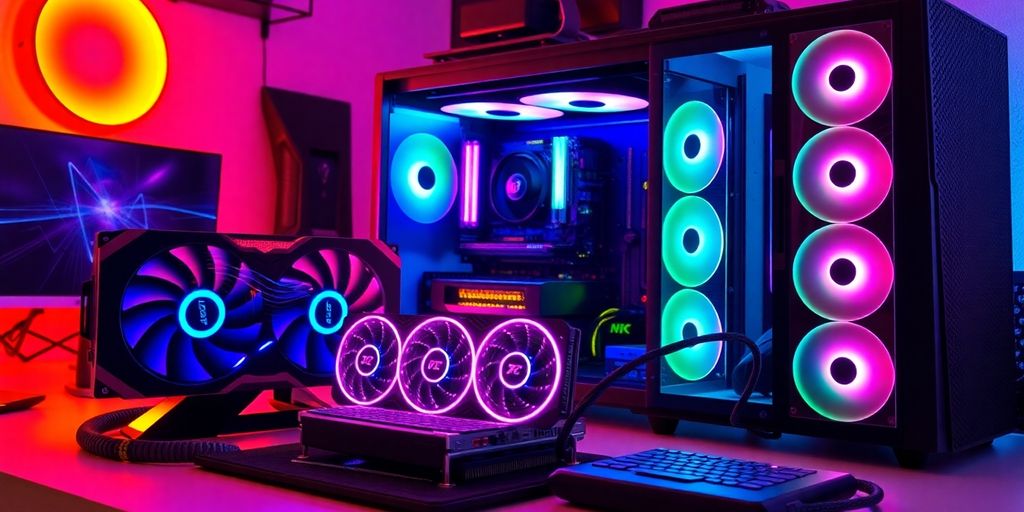
Okay, now it gets exciting! We’re talking about the parts that will bring your gaming PC to life. Without these, nothing works. Remember, this is the foundation for your gaming experiences. So, keep your eyes peeled!
CPU: The Heart
The CPU, or Central Processing Unit, is basically the brain of your PC. It performs all calculations and ensures everything runs smoothly. Don’t choose the cheapest model here, as a slow CPU will bottleneck everything. Pay attention to the number of cores and the clock frequency. More cores are good for multitasking, while a higher clock frequency allows for faster calculations. For gaming, you should consider at least an AMD Ryzen 5 5500 processor.
GPU: Graphics Power
The graphics card (GPU) is responsible for rendering images and videos. It is especially important for gaming, as it enables the details and smooth display of games. If you want to play current games at high resolutions, you need a powerful GPU. Consider an Asrock Radeon RX 6600 graphics card. Here, it’s better to invest a little more to enjoy future games as well.
RAM: Memory
Random Access Memory (RAM) is the short-term memory of your PC. It stores data that is currently needed. The more RAM you have, the better your PC can handle multitasking and the faster games load. For gaming, 16 GB of RAM is the minimum these days, while 32 GB is recommended. Also, pay attention to the speed of the RAM. Crucial Pro DDR4-3200 RAM is a good choice.
RAM is super important because it affects the speed at which your PC can access data. If you have too little RAM, your PC has to swap data to the hard drive, which can lead to noticeable delays.
Storage Solutions for Your Gaming PC
Okay, let’s talk about storage! This is a super important part of your gaming PC that is often underestimated. It’s about how quickly your games load, how many you can have installed at the same time, and how fast your system runs overall.
SSD vs. HDD
It used to be simple: hard drive (HDD) for everything. But nowadays? SSD is king! An SSD (Solid State Drive) is much faster than an HDD (Hard Disk Drive) because it has no moving parts. This means: your operating system, games, and programs start much faster. While HDDs are cheaper per terabyte, for gaming, an SSD is simply a must. Ideally, you combine both: a fast SSD for your operating system and favorite games, and an HDD for all the other data that doesn’t need to load quickly. A good option is the WD Black SN850X.
Planning Storage Capacity
How much storage do you really need? This depends on how many games you want to have installed at the same time and how large your game library is. Modern games can easily take up 50 GB or more of storage space.
Here are some guidelines:
- 500 GB SSD: Minimum for a gaming system, but it can quickly run out of space.
- 1 TB SSD: Solid choice for most gamers, providing enough space for the operating system, programs, and a few games.
- 2 TB SSD or more: Ideal if you want to have many games installed at the same time or store large files (e.g., videos).
- Additional HDD: For archiving data that doesn’t need to load quickly (e.g., photos, movies, old game files).
Backup Solutions
Don’t forget backups! Imagine your SSD fails and all your game saves are gone. Horror! There are various ways to back up your data:
- External Hard Drive: Simple and inexpensive, ideal for regular backups.
- Cloud Storage: Convenient, but dependent on your internet connection and the provider.
- NAS (Network Attached Storage): A kind of private cloud, ideal for multiple devices on the network.
Remember: a backup is always better than none. Regular backups can save you a lot of trouble and frustration.
So, think carefully about which storage solution best fits your needs. A fast SSD is essential for gaming, and don’t forget to back up your data regularly! With a PC configurator, you can select the right components.
Choosing the Right Motherboard
The motherboard, also known as the mainboard, is the heart of your gaming PC. It connects all components together and determines which hardware you can actually install. Here, the details matter to ensure everything runs smoothly later. Remember, the right motherboard is crucial for the performance and expandability of your system.
Socket Compatibility
The socket on the motherboard must match your CPU. Intel and AMD use different sockets, so make sure to check which socket your CPU requires. If you buy an Intel CPU from the 12th or 13th generation, you need a motherboard with an LGA 1700 socket. For AMD Ryzen 5000 or 7000 CPUs, it’s an AM4 or AM5 socket. Pay attention to this, or it won’t fit!
Expansion Slots
Consider what expansion cards you might want to install in the future. Do you need more than one graphics card (unlikely for gaming), sound cards, or other expansion cards? Then you need enough PCIe slots. The number of RAM slots is also important. Four slots are better than two if you want to add more memory [RAM] later.
Integrated Features
Modern motherboards offer many integrated features. These include:
- USB Ports: Having enough USB connections is important, especially USB 3.0 or newer for fast data transfer.
- Audio: High-quality onboard sound can make a separate sound card unnecessary.
- Network: Look for fast Ethernet or even integrated Wi-Fi if you don’t want to use a separate network card.
A good motherboard is an investment in the future. It should not only meet your current needs but also allow for future upgrades. Pay attention to high-quality components and good cooling to ensure your system runs stably.
And don’t forget: the I/O shield that is attached to the case is super important for routing the motherboard’s connections to the outside. For some boards, it’s already pre-installed, while for others, you have to clip it in yourself. So, keep your eyes open during installation!
Power Supply and Cooling
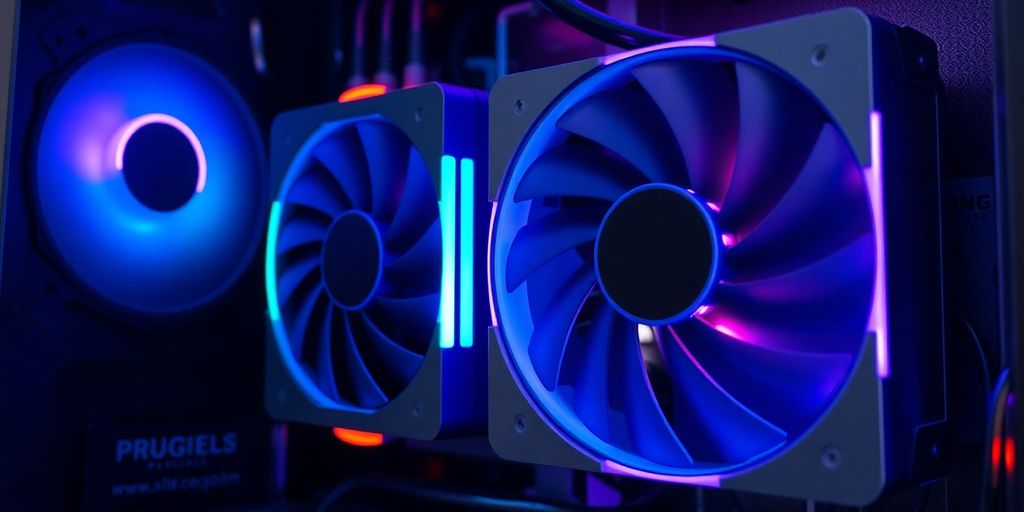
Calculating Power Requirements
Okay, now it gets technical! You need to check how much wattage your PC actually needs. This is super important to ensure your power supply doesn’t burn out. Remember: it’s better to plan for a little more reserve than too little. A simple rule of thumb: CPU consumption + GPU consumption + the rest (hard drives, RAM, fans, etc.) + buffer (about 20-30%).
There are online calculators that can help you with this, but a little mental math doesn’t hurt either. And don’t forget: a beefy graphics card needs a lot of power.
Comparing Cooling Methods
Air cooling vs. water cooling – the eternal question! Air coolers are usually cheaper and easier to install. Water coolers look cooler and can often cool the CPU better, but they are also more expensive and complicated. If you’re not planning to extremely overclock, a good air cooler is often perfectly sufficient.
Here’s a small table:
| Cooling Method | Advantages | Disadvantages |
|---|---|---|
| Air Cooling | Cheap, easy to install, low maintenance | Can be loud, less cooling performance with extreme overclocking |
| Water Cooling | Very good cooling performance, quieter (often), looks cool | Expensive, more complicated installation, potential risk of leaks |
There are also AIOs (All-in-One water coolers), which are a good compromise.
Considering Noise Levels
Do you want a PC that sounds like a starting jet, or one that’s barely audible? That’s a matter of taste. When buying fans and coolers, pay attention to the specified noise level (in decibels, dB). The lower the value, the quieter.
Fan control is also an important topic. Many motherboards offer the ability to automatically adjust fan speed. This is great because the PC will only be as loud as it needs to be.
Remember: a quiet PC is a relaxed PC. And who wants to be distracted by a loud PC while gaming?
Here are a few tips for a quiet PC:
- Buy quiet fans
- Use a good CPU cooler
- Choose a power supply with low noise
- Use a case with good sound insulation
Assembling Your Gaming PC
Okay, now it gets serious! Assembly is the most fun part, but also the one where you really need to pay attention. Don’t panic; with a little patience and care, you can do it. Remember, it’s like a big Lego set for adults!
Carefully Installing Components
Before you start, find a clean, well-lit workspace. Don’t forget the anti-static wrist strap! This protects your components from static electricity. And read the manuals! Each component has its own, and they are worth their weight in gold. Start with the motherboard, then CPU, RAM, GPU, and so on. Make sure everything fits and clicks into place properly. Don’t press too hard, but also not too loosely.
Cable Management Tips
Cable management is key to a tidy and well-ventilated PC. Trust me, you don’t want your cables looking like a pile of spaghetti. Use cable ties, Velcro straps, or the integrated cable channels of your case. Route the cables behind the motherboard tray to avoid obstructing airflow. Good cable management not only looks better but also helps keep the components cool.
Installing Cooling Properly
Cooling is super important to prevent your PC from overheating. Whether air or water cooling, read the instructions carefully! With air coolers, you often need to attach a backplate. With water coolers, make sure the pump is securely attached and the hoses aren’t kinked. And don’t forget the thermal paste! A thin layer between the CPU/GPU and cooler is more than enough. Too much is counterproductive. Remember, a gaming PC under 700 euros can also be well-cooled!
Remember, it’s not a race. Take your time, read the manuals, and be careful. If you’re unsure, check out some videos on YouTube. There are countless tutorials that show you step by step how to do it. And if nothing works, ask a friend or an expert for help.
Installing Software and Drivers
Choosing an Operating System
Okay, your gaming PC is built, looks great, but without an operating system, it’s just an expensive paperweight. Most people go for Windows, of course, but also consider alternatives. Linux, for example, is free and there are special gaming distributions. But be careful: not every game runs smoothly on Linux. Check that beforehand!
Updating Drivers
The key after installation is to update the drivers to the latest version. Otherwise, it will stutter and act up. Windows often installs some, but you should get the latest drivers for your graphics card, motherboard, and more directly from the manufacturer’s websites. For your graphics card, you can also use AVG Driver Updater to update everything at once. This saves time and nerves.
Setting Up Games and Software
Now comes the fun part: installing games! Steam, GOG, Epic Games Store – choose your favorite launcher and download your games. Remember, not every game runs perfectly right away. Sometimes you’ll need to tweak the settings a bit until it runs smoothly. And don’t forget all the other programs you need: Discord for gaming with friends, maybe a streaming tool, and of course your favorite antivirus program.
Remember to make regular backups! Nothing is more frustrating than losing your game saves or important data. An external hard drive or cloud storage is worth its weight in gold.
And one more tip: many fans are set to be too loud by default. In the BIOS, you can adjust the fan control for quieter operation. Have fun gaming!
Conclusion: Your Gaming PC, Your Rules!
At the end of the day, building your own gaming PC is a really cool thing. You have control over everything – from selecting the parts to the design. Sure, it can be tricky at times, but with a little patience and this guide, you’re on your way to assembling your dream PC. Remember, it’s not just about performance, but also about enjoying the process. So grab your parts, get to work, and enjoy your time gaming on your self-built PC. Have fun building!
Frequently Asked Questions
How much money should I budget for my gaming PC?
The budget depends on your wishes. A simple gaming PC can cost from 600 euros, while a powerful PC can cost 2000 euros or more.
Can I build a gaming PC without prior knowledge?
Yes, even beginners can assemble a gaming PC. There are many tutorials and guides that can help you.
How do I find out if the parts I want to choose are compatible?
A PC configurator can help you select the right parts. You should also check the specifications of each part.
How often should I upgrade my gaming PC?
It’s good to check every 2-3 years if an upgrade is necessary to maintain your PC’s performance.
Is it cheaper to build a PC myself or buy a pre-built one?
Often, it’s cheaper to build a PC yourself since you only pay for the parts you really need.
What operating system is best for my gaming PC?
Windows 10 or Windows 11 are the best options as they support most games and software.