Building a gaming PC can be a challenge, especially when you have a limited budget. But don’t worry! In this article, we’ll show you how to put together a gaming PC on a budget. We’ll give you an overview of the essential components you need and provide useful tips to get the most out of your money. With our advice, building your PC will be a piece of cake!
Key Insights
- Carefully plan your budget to find the best components.
- Compare the performance of AMD and Intel processors to make the right choice.
- Ensure the compatibility of graphics cards with your motherboard.
- Choose between SSDs and HDDs based on your storage needs.
- Consider cooling and design when selecting a case for optimal performance.
The Basics for Your Gaming PC
Essential Components at a Glance
Okay, let’s go through the most important parts for your gaming PC. Think of it like building a house – each part has an important role. First, there’s the CPU, or processor. It’s like the brain of the PC and does all the calculations. Then you need a graphics card, which is super important for all the visual stuff, meaning what you see on the screen. Without a good graphics card, your games can look pretty bad. RAM, or memory, is also important. It ensures that your PC can quickly access data. And of course, you need a hard drive or SSD to store your operating system, games, and all other data. Don’t forget the motherboard, which connects everything, and a power supply that powers it all. Lastly, you need a case to keep everything looking neat and protected.
What You Should Know Before Assembling
Before you start buying parts, there are a few things you should check. First: What do you actually want to do with the PC? Do you just want to game, or also edit videos or stream? This will determine which components you need. Second: Check compatibility! Not every part fits with every other part. The motherboard must match the processor, the RAM must match the motherboard, and so on. It’s best to check the specifications from the manufacturers beforehand. Third: Consider whether you want to upgrade later. If so, you should buy a motherboard and power supply now that have enough reserves. And fourth: Don’t forget the operating system! Windows can also cost a pretty penny.
Budget Planning and Price-Performance Ratio
Let’s get to the most important point: your budget. Think carefully about how much money you want to spend. It’s no use buying the most expensive processor if you then have to skimp on the graphics card. Try to find a good balance. Look at gaming PC configurations to get a feel for how much the individual parts cost. Pay attention to the price-performance ratio. Sometimes a slightly more expensive part is the better choice because it lasts longer or delivers more performance. And don’t forget that you might also need accessories like a mouse, keyboard, and monitor. Factor all of this in so you’re not surprised at the end.
Processors: The Heart of Your PC
Sure, in a gaming PC, the graphics card is often the star, but the processor (CPU) is the brain! It ensures that everything runs smoothly and your games play fluidly. Without a good processor, even the best graphics card can’t reach its full potential. Imagine you have a sports car, but the engine is an old lawnmower engine – it just doesn’t work.
AMD vs. Intel: Which Is Better?
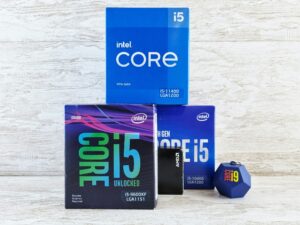
This is the eternal question! AMD and Intel are the two big players in the CPU market, and both have their pros and cons. In the past, Intel was often the first choice for gaming, but AMD has made significant strides in recent years.
- AMD: Often offers a better price-performance ratio, especially in the entry-level and mid-range segments. Great for multitasking and applications that utilize many cores.
- Intel: Can be slightly faster in some games, especially in higher price ranges. Often the choice for those who want the absolute maximum performance.
- Which is better for you? Depends on your budget and requirements. Look at benchmarks and tests to see which CPU performs better in your favorite games.
What to Consider When Choosing
So, you want a new processor. What should you pay attention to? Here are a few important points:
- Cores and Threads: More cores and threads mean the processor can handle more tasks simultaneously. For gaming, at least 6 cores are recommended, but more is always better.
- Clock Speed: The clock speed (GHz) indicates how fast the processor works. A higher clock speed generally means more performance, but it also depends on the architecture of the processor.
- Socket: The socket is the connection on the motherboard where the processor is inserted. Make sure the processor and motherboard are compatible! Check the motherboard socket.
- TDP (Thermal Design Power): TDP indicates how much heat the processor generates. You need a cooler that can dissipate the heat.
Remember: The best processor isn’t always the most expensive. Consider what you really need and what your budget allows.
The Best Processors for Budget Builds
Want to build a gaming PC but have a limited budget? No problem! There are many good processors that won’t break the bank. Here are a few recommendations:
- AMD Ryzen 5 5600: A great processor for beginners. Offers good performance for gaming and other applications. And the price-performance ratio is just right. The AMD Ryzen 5 7500F is also a good choice.
- Intel Core i5-12400F: A good alternative to the Ryzen 5 5600. Offers similar performance and is often a bit cheaper. The Intel Core i5-14600KF is also a good choice.
- AMD Ryzen 5 8400F: For absolute penny pinchers. Still offers decent performance for gaming, but you may need to dial back the graphics settings a bit.
Remember that you also need a compatible motherboard. Make sure the motherboard has the right socket for your processor. And don’t forget the cooler! A good cooler ensures that your processor doesn’t overheat and can deliver its full performance. Also, check out the CPU ranking!
Graphics Cards: The Key to Gaming Fun
Graphics cards are super important for your gaming experience. Without the right graphics card, gaming just isn’t fun. They are basically the heart of smooth frame rates and high resolutions. Let’s take a look at what to consider to find the best graphics card for your budget.
Nvidia or AMD: What’s Right for You?
Nvidia and AMD – it’s almost like Apple vs. Android. Both have their pros and cons. Nvidia is often a bit more expensive but usually offers better performance, especially with ray tracing. AMD is generally cheaper and offers great price-performance ratios.
- Nvidia: Known for ray tracing and DLSS (Deep Learning Super Sampling).
- AMD: Often cheaper, offers FreeSync (similar to G-Sync from Nvidia, but usually at a lower cost).
- Intel: Trying to get in on the action, but not yet well established in the gaming space.
How Much Power Do You Need?
That depends on what you want to play and at what resolution. For Full HD (1080p), entry-level to mid-range graphics cards are often sufficient. For WQHD (1440p) or 4K, you’ll need a bit more power. Also, think about the future: games are becoming increasingly demanding.
- Full HD (1080p): Entry-level to mid-range graphics cards.
- WQHD (1440p): Mid-range to high-end graphics cards.
- 4K (2160p): High-end graphics cards.
Think carefully about which games you want to play and what resolution is important to you. Then you can better assess how much power you really need.
Affordable Graphics Cards for Every Budget
Even with a small budget, you can find a good graphics card. Here are a few examples:
- Entry-level: AMD Radeon RX 6600 or Nvidia GeForce RTX 3050. These cards are great for 1080p gaming with medium settings.
- Mid-range: AMD Radeon RX 7600 or Nvidia GeForce RTX 4060. With these, you can also play newer games at 1080p or even 1440p.
- High-end: AMD Radeon RX 7800 XT or Nvidia GeForce RTX 4070. These cards are perfect for 1440p or even 4K gaming with high settings.
Keep in mind that prices can change frequently. Always compare current offers before making a decision. And don’t forget that used graphics cards can also be a good option to save money!
Motherboards: The Foundation of Your Hardware
Motherboards are really the A and O for your gaming PC. Think of them as the nerve center where all components come together and communicate. Without a suitable motherboard, nothing works. Let’s take a look at what to consider so you don’t make a mistake.
Important Features and Connections
Okay, this is where it gets a bit technical, but don’t panic, it’s not that bad. Make sure your motherboard has the right connections for your other components. Do you need many USB ports? Want to connect multiple monitors? Check this beforehand! And don’t forget the M.2 slot for your SSD, it makes your system much faster. Finding a good motherboard is crucial for your PC’s performance.
Compatibility with Processors
The most important thing: Your motherboard must match your processor! AMD and Intel use different sockets, so make sure you know which socket type your CPU needs. Otherwise, you’ll end up with parts that don’t fit together. That would be super frustrating, believe me.
The Best Motherboards for Your Budget
Sure, high-end motherboards with all the bells and whistles are cool, but for a budget gaming PC, you don’t necessarily need that. There are great motherboards that offer everything you need without breaking the bank. Check out the usual suspects (ASRock, MSI, Gigabyte), as they often have good deals. Pay attention to reviews and customer feedback to find the best price-performance ratio.
Remember: An expensive motherboard won’t help if your other components can’t keep up. Focus on a balanced system where everything works well together.
Storage: Choosing RAM and SSDs Wisely
How Much RAM Do You Need?
Okay, RAM is super important. For gaming, I’d say 16 GB is the absolute minimum these days. Many new games already benefit from 32 GB. So if you can spend a bit more, go for it!
- 8 GB: Might still be enough for older games or very simple applications.
- 16 GB: The sweet spot for most gamers. Runs well with current titles.
- 32 GB: Future-proof and ideal for demanding games and applications.
Remember, your RAM should also be fast. Pay attention to the MHz number – the higher, the better. DDR4 is okay, but DDR5 is the new standard and offers a significant performance boost. Check out DDR5 memory.
SSD vs. HDD: Which Is Better?
Clearly: SSD! An HDD (hard drive) is nowadays only really useful for data graves where you need to store large amounts of data that you don’t access frequently. For your operating system, games, and programs, you need an SSD. They are more expensive per gigabyte, but the speed advantage is enormous. Your games load much faster, Windows starts in seconds, and everything just feels smoother.
An SSD is one of the best investments you can make in your gaming PC. It makes a huge difference in everyday use.
There are different types of SSDs: SATA and NVMe. NVMe SSDs are significantly faster than SATA SSDs because they connect via the PCIe bus. If your motherboard supports it, definitely go for an NVMe SSD. The Samsung 980 Pro is a great option.
Affordable Storage Options Compared
Okay, here are a few options to keep your storage costs down:
- RAM: Look for deals! There are often good kits on sale. Pay attention to the speed (MHz) and latency (CL). CL16 is better than CL22.
- SSD: A 500 GB SSD is sufficient for starters if you’re on a tight budget. You can always add a second SSD or an HDD later. Check out the affordable graphics cards.
- HDD: If you really need a lot of storage, you can use an HDD as a data grave. But as mentioned, for everything else, an SSD is a must.
| Component | Recommended Size | Price (approx.) |
|---|---|---|
| RAM | 16 GB (better 32 GB) | 50-100€ (16 GB) / 100-200€ (32 GB) |
| SSD | 500 GB – 1 TB | 40-80€ (500 GB) / 80-150€ (1 TB) |
| HDD | 1-4 TB (optional) | 40-100€ |
Case and Cooling: Functionality and Design
The Right Case for Your Components
Okay, the case. It may sound unremarkable at first, but it’s super important. It’s not just the shell; it’s also crucial for cooling and airflow in your PC. Remember, it needs to be big enough for all your components – especially the graphics card and CPU cooler. Also, look for features like cable management, which makes assembly much easier and looks cleaner in the end. And of course, personal taste plays a role: Do you want a simple case or one with RGB lighting? There are really many options.
- Size: Check the dimensions of your components.
- Airflow: Look for mesh fronts or enough fan slots.
- Cable Management: Helps keep the interior tidy.
Ventilation and Cooling: Keeping Everything Cool
Overheating is the enemy of every gaming PC. Good cooling is therefore a must. CPU coolers come in various designs: air coolers are often cheaper and sufficient for many builds. Water cooling looks cooler and can cool the CPU even better, but it’s also more expensive and more complicated to install. When it comes to case fans, more is often better. They provide a constant airflow and expel warm air. Make sure the fans aren’t too loud, or it will be annoying while gaming.
Good cooling is not only important for performance but also for the longevity of your components. If the parts are constantly overheating, they wear out faster.
Affordable Cases with Good Design
You don’t have to spend a fortune to get a good case. There are many models that are both functional and visually appealing. Look for cases with pre-installed fans, as this saves you additional costs. Cases with mesh fronts are also a good choice as they allow for good airflow. And if you’re into RGB, there are also affordable alternatives. Remember, the case should not only look good but also be practical and provide enough space for your components. A good case doesn’t have to be expensive.
- Silentware Air 100: Offers a good price-performance ratio.
- Cases with mesh fronts: Ensure good airflow.
- Models with pre-installed fans: Save additional costs.
Assembly: How to Become a PC Pro
Step-by-Step Guide
Okay, you have all the parts for your gaming PC together. Now it’s time to get down to business! Don’t panic, assembly isn’t rocket science, even if it may seem that way at first. What’s important is that you take your time and perform each step carefully.
- Preparation is everything: Find a clean, well-lit workspace. Don’t forget an anti-static wristband to avoid damaging components through static discharge. Have all your tools ready: screwdriver (preferably magnetic), cable ties, and possibly tweezers.
- Equip the motherboard: Start by installing the CPU, RAM, and possibly the M.2 SSD onto the motherboard. Pay attention to the correct orientation and don’t apply unnecessary pressure.
- Prepare the case: Install the standoffs for the motherboard in the case. Then you can carefully insert the motherboard and screw it in.
- Install the power supply: Place the power supply in the case and screw it in. Make sure the cables are easily accessible.
- Insert the graphics card: The graphics card goes into the top PCIe slot. Make sure it’s seated correctly and locked in place.
- Cabling: Connect all components to the power supply and motherboard. Pay attention to the correct polarity and plug all cables in securely. The right case can help here.
- Cable management: Tidy up the cables so they’re not in the way and don’t obstruct airflow. Cable ties are your best friend here.
- First start: Double-check all connections before starting the PC for the first time. If all goes well, you should see a picture on the monitor.
Tips for First-Time Assembly
- Read the manuals for the components carefully. You’ll find important information and tips there.
- Watch videos on YouTube. There are countless tutorials that show you the assembly step by step.
- Ask friends or acquaintances who have experience with PC building. Four eyes see more than two.
If you’re unsure, ask for help! It’s better to ask once too often than to break something.
Avoiding Mistakes: What to Watch Out For
When assembling a PC, things can go wrong. Here are a few common mistakes to avoid:
- Static discharge: Always wear an anti-static wristband to protect your components from damage.
- Incorrect cabling: Pay close attention to the correct polarity and plug all cables in securely. A loose cable can cause problems.
- Too much force: Don’t apply unnecessary pressure when installing components. If something doesn’t fit, check if you’re doing everything correctly.
- Forgotten standoffs: Be sure to install the standoffs for the motherboard in the case. Otherwise, it can lead to short circuits.
- Forgotten cooler: Make sure the cooler is properly seated on the CPU and that there’s enough thermal paste. Otherwise, the CPU can overheat. The CPU cooling is very important.
If you keep these tips in mind, nothing will stand in the way of your first self-built gaming PC! Have fun building!
Pre-built PCs: An Alternative to Self-Building
Sure, building a gaming PC can be a lot of fun. But sometimes you just don’t have the time, patience, or know-how. That’s where pre-built PCs come in. They are a great alternative if you want to get started right away without spending hours dealing with compatibility and assembly instructions.
Pros and Cons of Pre-built PCs
Pre-built PCs definitely have their place. One of the biggest advantages is that they are ready to use immediately. You unpack them, plug them in, and start gaming. Additionally, you usually have a warranty on the entire system, which can be a bit more complicated with self-built PCs. However, you often pay a premium for this convenience. And of course, you have less flexibility in configuration than with self-building. Here’s a quick overview:
- Advantages:
- Ready to use immediately
- Warranty on the entire system
- Less effort
- Disadvantages:
- Higher price
- Less flexibility in configuration
- Sometimes lower quality components used
The Best Providers Compared
There are countless providers of pre-built PCs, from large electronics chains to specialized PC shops. Some of the most well-known are Dubaro, Alternate, or HardwareDealz. When choosing, don’t just look at the price, but also at the components used, warranty conditions, and the provider’s reputation. It’s best to read a few reviews before making a decision. Also, look for deals on affordable pre-built PCs to get the best price-performance ratio.
When Is a Pre-built PC Worth It?
Whether a pre-built PC is worth it for you depends entirely on your individual needs and preferences. If you have little time, don’t want to deal with the technology, or just want a hassle-free complete package, then a pre-built PC is a good choice. However, if you value maximum flexibility and are willing to invest time and effort into assembly, you should build it yourself. Also, keep in mind that you can often save some money with a self-built PC.
A pre-built PC is ideal if you want to jump into gaming quickly and easily without getting bogged down in technical details. It offers a convenient solution, especially for beginners or people with little time.
Conclusion
So, now you have an overview of how to put together a gaming PC without spending all your money. It’s really not that hard if you take your time and choose the right parts. Remember that you don’t always need the latest and greatest to enjoy good games. Look at the example configurations and think about what works best for you. And hey, if you have questions or need help, check the comments or ask in the community. Have fun building and gaming!
Frequently Asked Questions
What are the most important parts for a gaming PC?
The most important parts are the processor, graphics card, motherboard, memory (RAM), and storage (SSD or HDD).
How much money should I budget for my gaming PC?
It depends on your requirements. You can put together a good entry-level PC for about 500 to 600 euros.
Is it better to build a PC myself or buy a pre-built one?
It depends. Building it yourself gives you more control and often a better price-performance ratio, while pre-built PCs are easier and quicker to set up.
Which graphics card is the best for a small budget?
For a small budget, cards like the Nvidia GTX 1650 or the AMD Radeon RX 6500 XT are recommended.
How much RAM do I need for a good gaming experience?
For most games, 16 GB of RAM is sufficient. However, if you plan to run more intensive applications, 32 GB might be better.
What should I pay attention to when assembling my PC?
Make sure all parts are compatible, work in a well-lit area, and proceed step by step to avoid mistakes.